
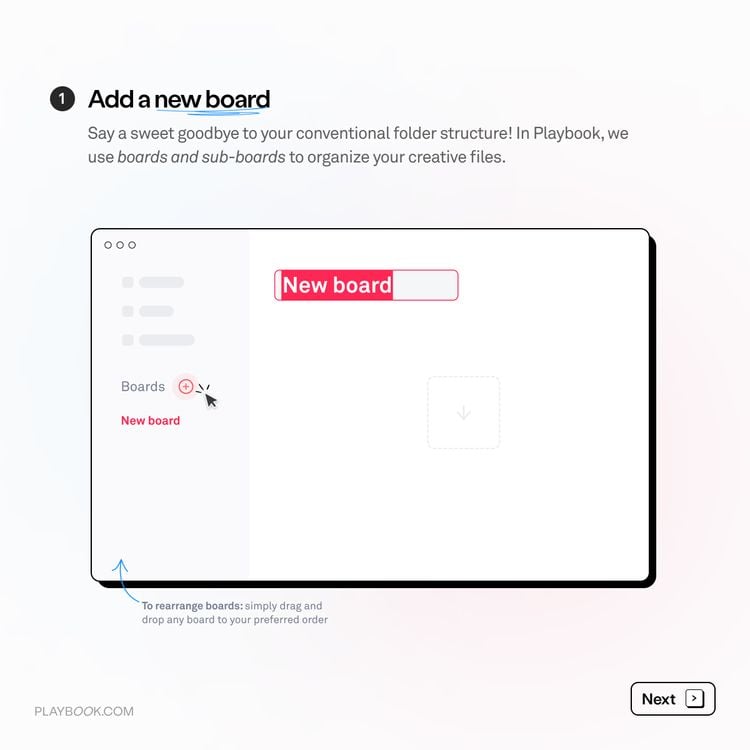
Creating a new board
How to create a new board on Playbook...
How to create a new board on Playbook...
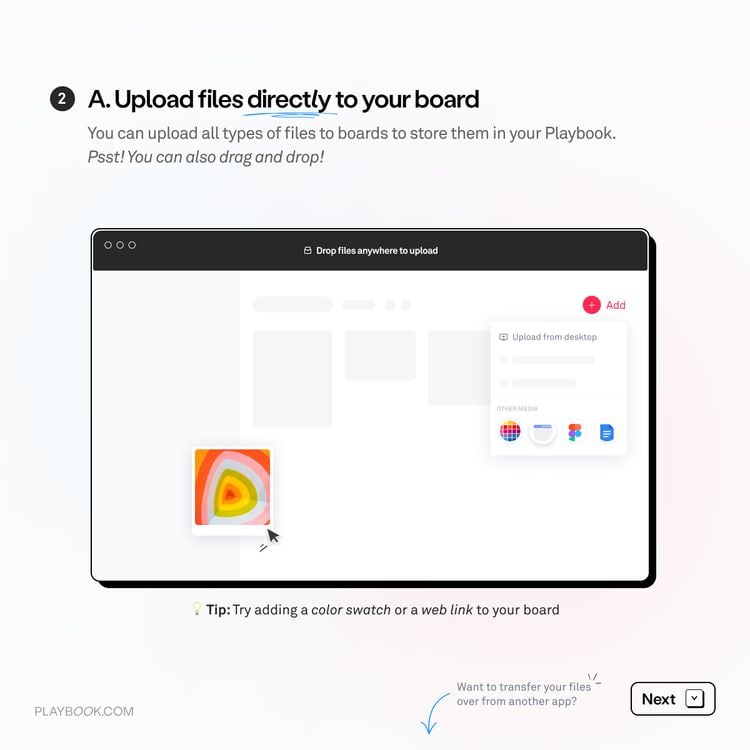
Step 1: Drag files from your desktop and drop into a board You can also click on (+) Add to Upload..
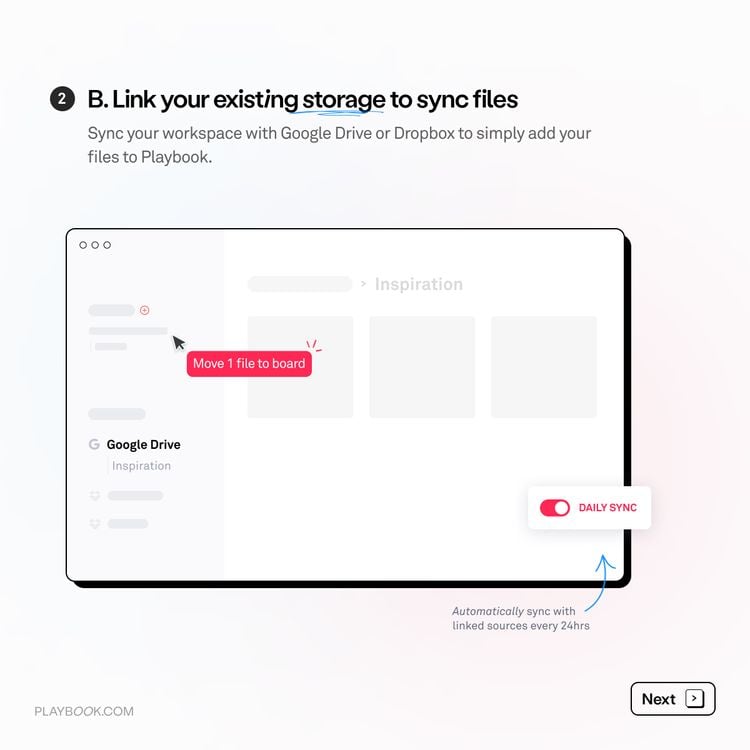
Step 1: Click on “Apps” Step 2: Under "Sync tools", select Google Drive, Dropbox, or OneDrive Step 3:..
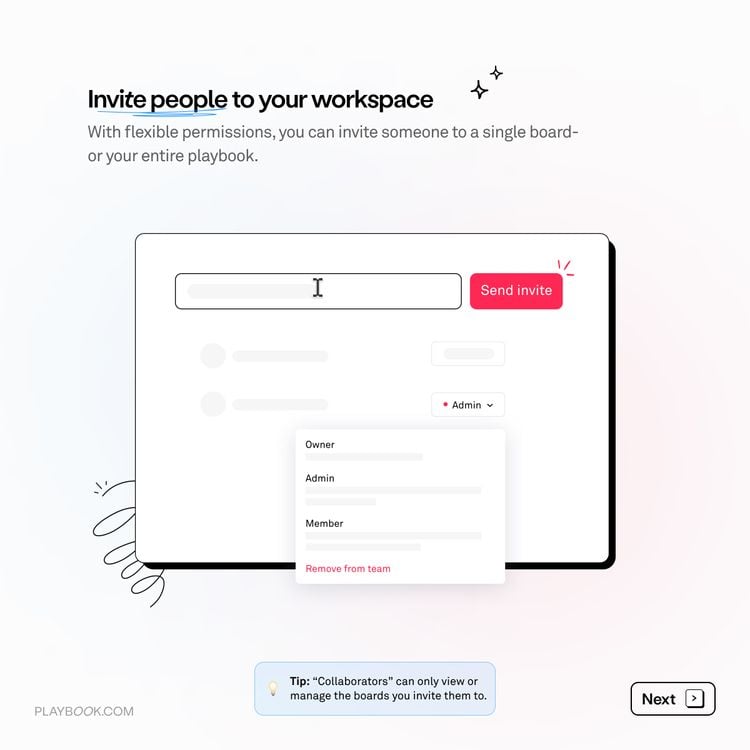
Step 1: Navigate to “Members” in the upper left part. Note, inviting people to a board is not the same..
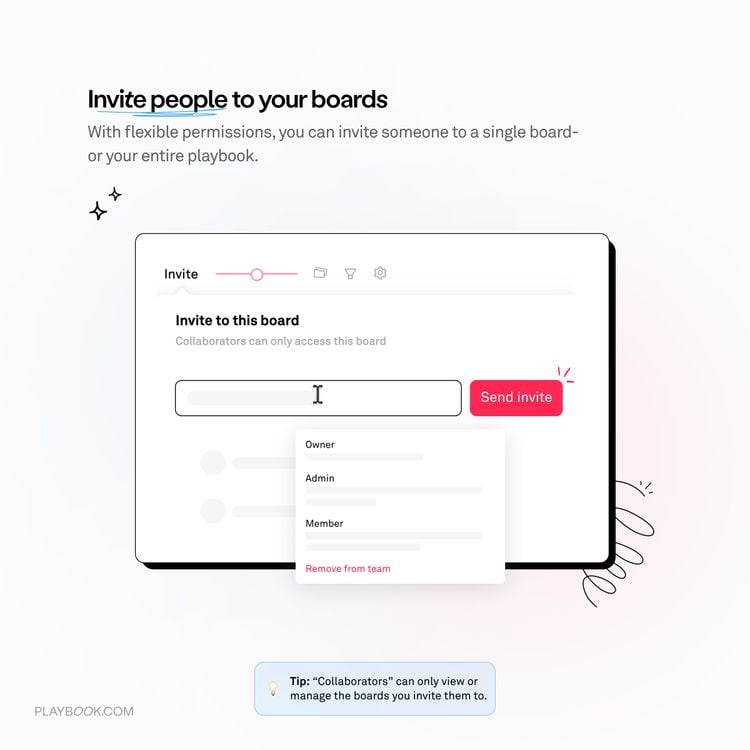
Step 1: Access the board intended for collaboration. Step 2: Click on Share. Step 3: Invite by entering the collaborator’..
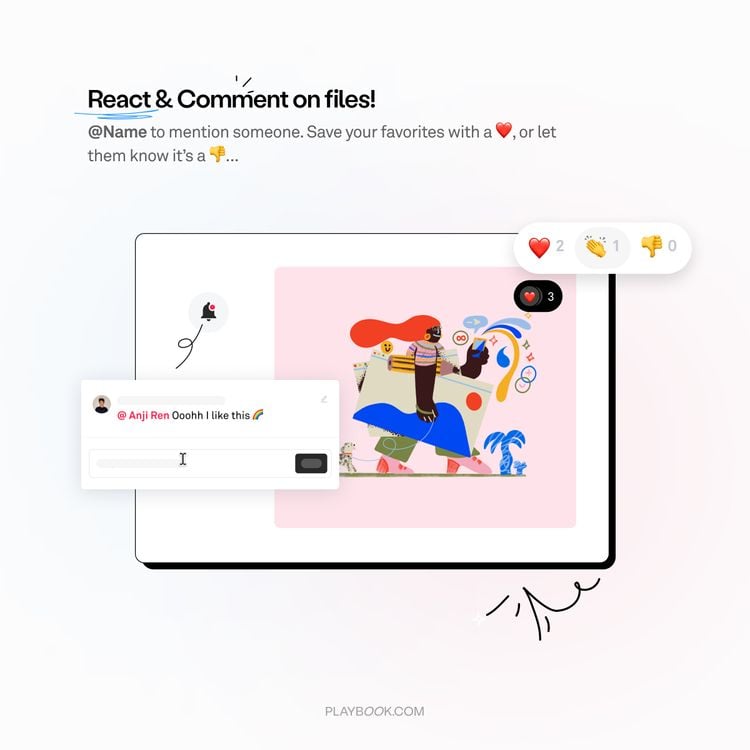
Step 1: Select ❤️ in the top right corner of an asset in a board. There are multiple reactions available. Step..
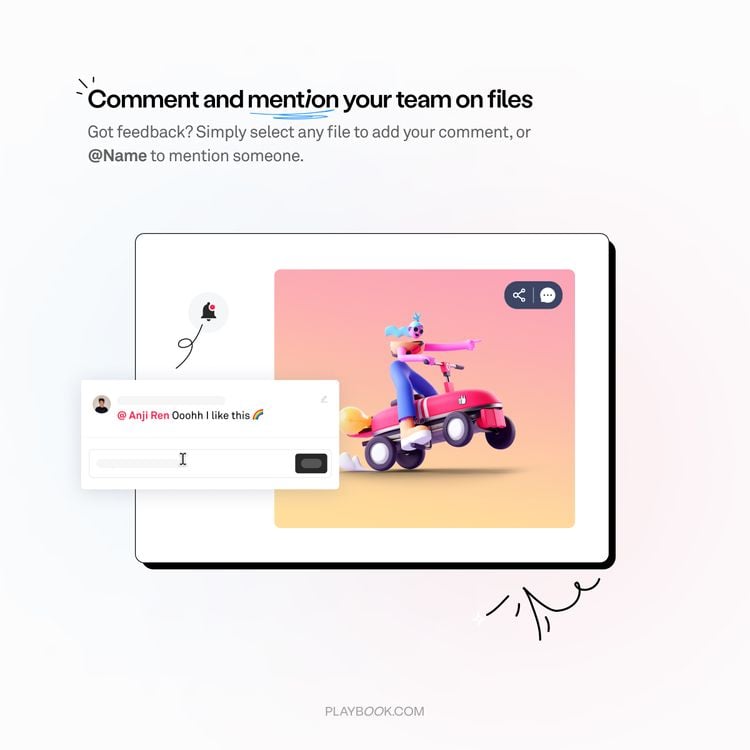
Step 1: Click the comment icon in the top right corner of an asset in a board. You can also..
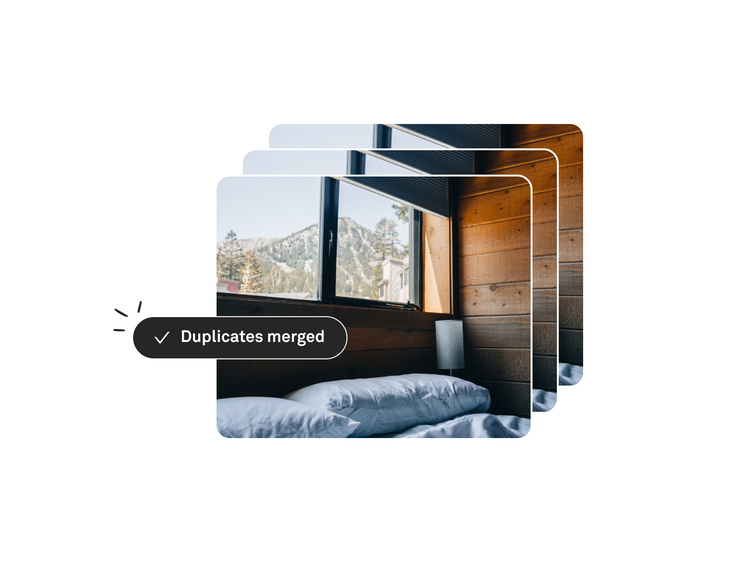
There are a ton of ways that grouping files can elevate your workflow! From managing versions of your work to..
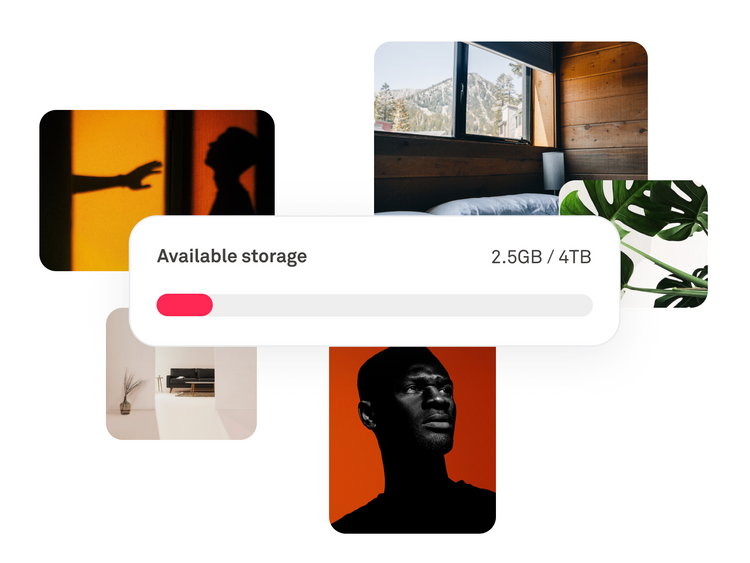
Step 1: Click the Settings icon (three dot icon). Step 2: Download 😉 It will start downloading the assets. Fun fact:..
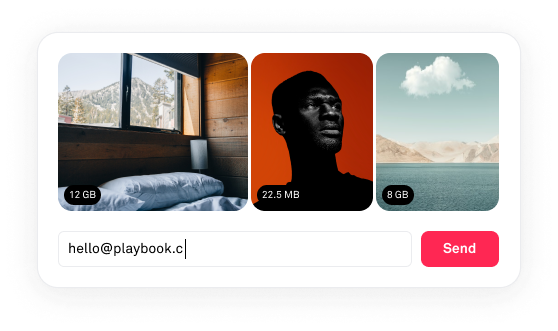
Here are four simple ways to share files! Sharing a single file via link Step 1: Navigate to the file..
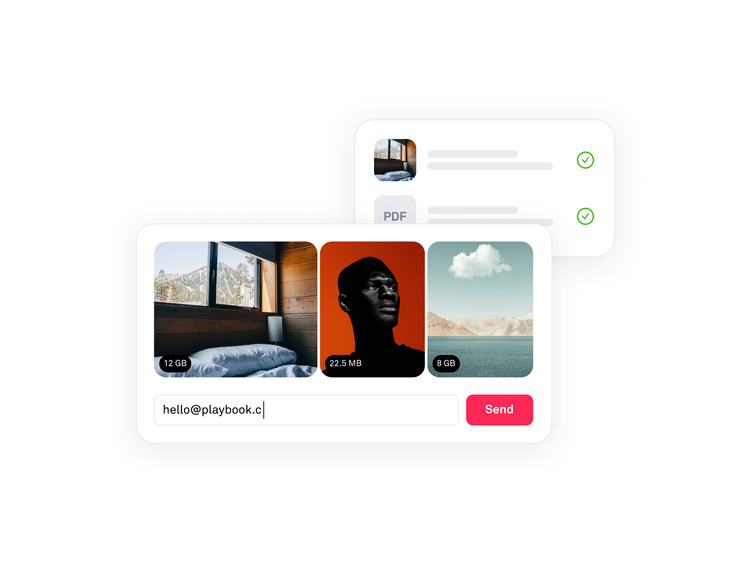
💡 Shared files aren't indexed by search engines like Google by default. Click on any individual file and Share..
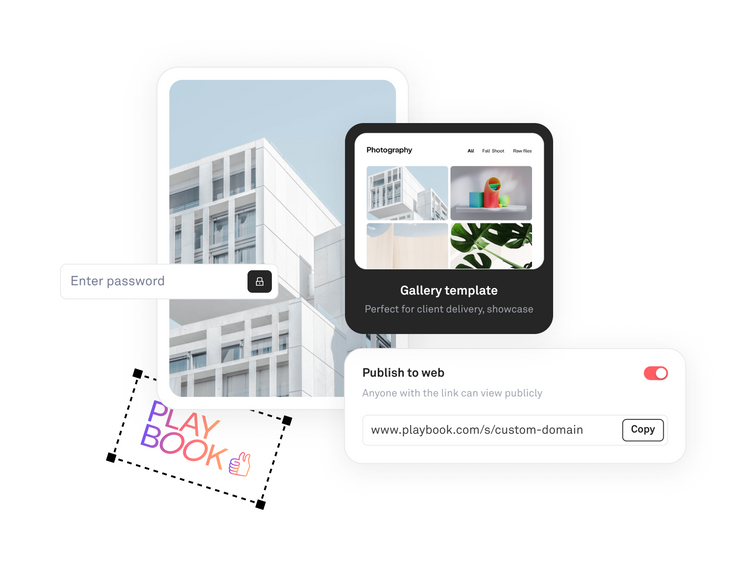
Step 1: Navigate on the upper middle part of your board and click on Publish. Step 2: Click the Customized..

Step 1: Prepare your board, description, and assets. Step 2: Select a template in the sidebar. Try out all the..
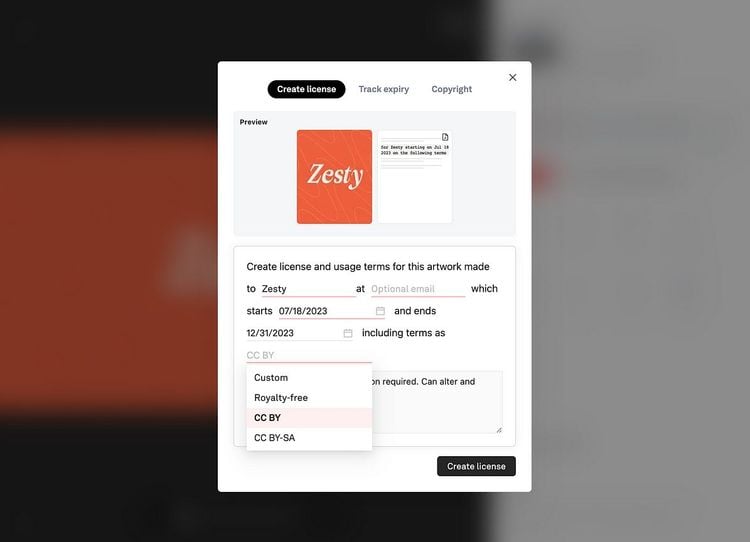
In Playbook, you can create licensing PDF for your clients and mark your work copyrighted. How to copyright your work..

Beta program Be the first to try new Playbook tools Join our community of early adopters and gain exclusive access..
Learn what Playbook does, who it's for, and how we handle visual files...

Your Playbook questions answered: Tutorials and other popular user queries...

Learn how to set up your Playbook workspace..

Learn how boards and sub-boards work in Playbook..

Different ways to upload files or folders into a board in Playbook...

How to import files from Google Drive, Dropbox or OneDrive..

Send your work to anyone in seconds with a simple, live-update link..

Learn how to use Batch actions to move, copy, and organize thousand of assets in seconds...

Learn how to use Groups to combine multiple version or similar assets...

Learn how to use Playbook's "Status" field and create your own Custom fields...

Learn how to manually tag your assets for perfect organization..

Learn the difference between Archive and Delete to keep your workspace tidy..

Learn how to invite Members or Guests and manage their access with flexible permissions...

Learn how to leave comment on images, videos and attach reference images to comments...

Learn how to use Star ratings and Emoji reactions to speed up your approval process...

Learn how to use Playbook's Conversations feed for workspace updates...

Learn how to manage downloads, set expirations, add extra protection to your shared boards...

Use Board Rules to require specific info or automatically tag new files as they’re uploaded...

How Playbook removes duplicates and groups similar files automatically during every upload..

How to find assets by name and metadata, or use AI Search to discover assetsin Playbook...

Learn how to use Filters to narrow down your workspace or just specific boards...

How to use visual similarity to find related assets in Playbook...

How to change workspace name, set your default view, add custom logo, and manage comment visibility...

How to customize your email alerts for new comments, uploads, and weekly summary of change in your workspace...

How to update your Playbook account details, manage your account data, and delete your account...

How to use your unique Drop link to collect files from anyone without requiring them to create an account..